Programming Scan button for new staff
*Make sure there is a subfolder in their G drive or R drive named: _scans. If user does not have access, reach out to helpdesk@pachyderm.net to grant access and create a folder. All scans as of 1.28.2025 go to G/R drives.
Printer #1 : Ricoh 3010
Web admin: http://10.0.0.57 (Ricoh 3010 in front of Alice’s office ) – As of Sept 2024
Copier #2: Ricoh 4510
Web admin: http://10.0.0.68 (Ricoh 4510 in main area by the pods) – As of February 2025
Login for Ricoh – Click on Login on the top right corner of the page
Username : admin
Password: BLANK
- Click Device Management à Address Book
- Click
 - Be sure to select the Detail Input tab to be able input the file path. Easy Input will not.
 - Under the Folder section: Make sure to set the following:
Protocol: SMB
Path: \\10.0.0.75\users\USERNAME*\_scans
USERNAME should be the user you are programing the button for – is the staff member’s email address without the domain. ex: EKulleseid
Setting up file transfer settings on copiers for files to scan to work:
Click Device Management à Configuration
Under Device Settings section, ,make sure the following File Transfer settings are set:
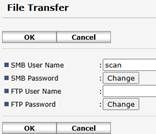 SMB User Name: scan
SMB Password: sc123an456 (note: you will need to click on the change button to input password)
For Reference: This is the old way to input authentication for user folders. Do this for all users tabs if scans stops working.
For most people the login user name should be: scan
And the password should be: sc123an456
Was this article helpful?
That’s Great!
Thank you for your feedback
Sorry! We couldn't be helpful
Thank you for your feedback
Feedback sent
We appreciate your effort and will try to fix the article