When assigning a new laptop, either to replace a laptop or for a new staff member, please do the following:
OSI STAFF:
1) Go into IT closet and pull a laptop out - sorted from oldest purchase to newest purchase left to right
2) Identify the Service Tag (ST) number - located on the side of the box
3) Email pachyderm - Techsupport@osiny.org
What to include in email:
- Name and email of user laptop is being assigned to
- Service Tag of laptop
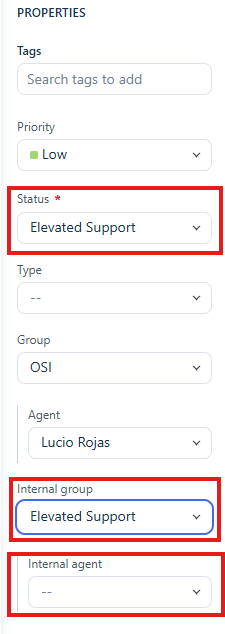
4) In FreshDesk, escalate the ticket to Pachyderm.
Make sure to select Elevated Support under status and Internal Group
Select either Steve Boxer or Bill Deblase
Pachyderm Assigns Laptop to user account and sends confirmation when ready.
5) Once assignment is confirmed, power on laptop and follow initial setup instructions
6) When prompted to log-in by user, input user's password or request pachyderm for a Temporary Access Password to bypass needing user's email.
7) Let laptop run all initial setups and starts windows 11
8) once logged in, be sure to check for all windows updates and run them
9) Open outlook so that it downloads full inbox.
10) Install all required apps , including printers and network drivers
Pachyderm may assist with adding network drives to laptop.
Was this article helpful?
That’s Great!
Thank you for your feedback
Sorry! We couldn't be helpful
Thank you for your feedback
Feedback sent
We appreciate your effort and will try to fix the article